Contents
- Requirements
- Setup
- Usage
- Downloads - Stable
- Downloads - Beta
- Desktop App - Optional
- China
- Troubleshooting
If you experience an issue please report your Linux distribution, CPU architecture, the VPX version you installed, a description of the problem, and steps needed to reproduce it.
Note: we aim to support a wide array of Linux distributions and flavors, but cannot guarantee that your specific setup will work.
Requirements
- Latest version of your Linux distribution. We do not support old versions of Linux distributions.
Setup
To install VPX for Linux, please follow these steps:
- Download the package suitable for your Linux distribution and CPU architecture from the Downloads section below.
- Install the package.
- Run
vpx installto complete the setup. - Run
vpx login <subscriptionUrl>using the subscription URL found below to login and retrieve the server list.
For example, on a typical Ubuntu computer:
cd Downloads
sudo dpkg -i vpx-26.4.1-x86_64.deb
vpx install
vpx login https://example.com/api/vpx-linux/GiBbEriSH
Fedora:
cd Downloads
sudo dnf install vpx-26.4.1-x86_64.rpm
vpx install
vpx login https://example.com/api/vpx-linux/GiBbEriSH
Arch Linux:
cd Downloads
sudo pacman -S vpx-26.4.1-x86_64.pkg.tar.zst
vpx install
vpx login https://example.com/api/vpx-linux/GiBbEriSH
Subscription URL
This is the subscription URL for your account:
Usage
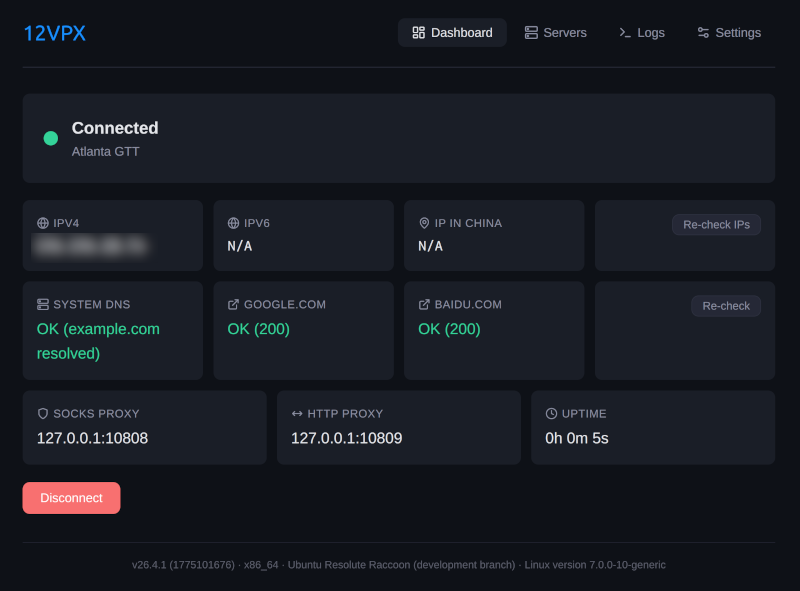
- Open the web interface by running
vpx openor navigate your browser to http://127.0.0.1:9847. - Run
vpx helpfor more information on using the CLI.
Downloads - Stable
- Debian / Ubuntu (.deb) v26.10.37
- Fedora / RHEL (.rpm) v26.10.37
- Arch Linux (.pkg.tar.zst) v26.10.37
- Generic Linux (.tar.gz) v26.10.37
- Debian / Ubuntu (.deb) v26.10.37
- Fedora / RHEL (.rpm) v26.10.37
- Arch Linux (.pkg.tar.zst) v26.10.37
- Generic Linux (.tar.gz) v26.10.37
- Debian / Ubuntu (.deb) v26.10.37
- Fedora / RHEL (.rpm) v26.10.37
- Arch Linux (.pkg.tar.zst) v26.10.37
- Generic Linux (.tar.gz) v26.10.37
Downloads - Beta
- Debian / Ubuntu (.deb) v26.10.37
- Fedora / RHEL (.rpm) v26.10.37
- Arch Linux (.pkg.tar.zst) v26.10.37
- Generic Linux (.tar.gz) v26.10.37
- Debian / Ubuntu (.deb) v26.10.37
- Fedora / RHEL (.rpm) v26.10.37
- Arch Linux (.pkg.tar.zst) v26.10.37
- Generic Linux (.tar.gz) v26.10.37
- Debian / Ubuntu (.deb) v26.10.37
- Fedora / RHEL (.rpm) v26.10.37
- Arch Linux (.pkg.tar.zst) v26.10.37
- Generic Linux (.tar.gz) v26.10.37
Desktop App - Optional
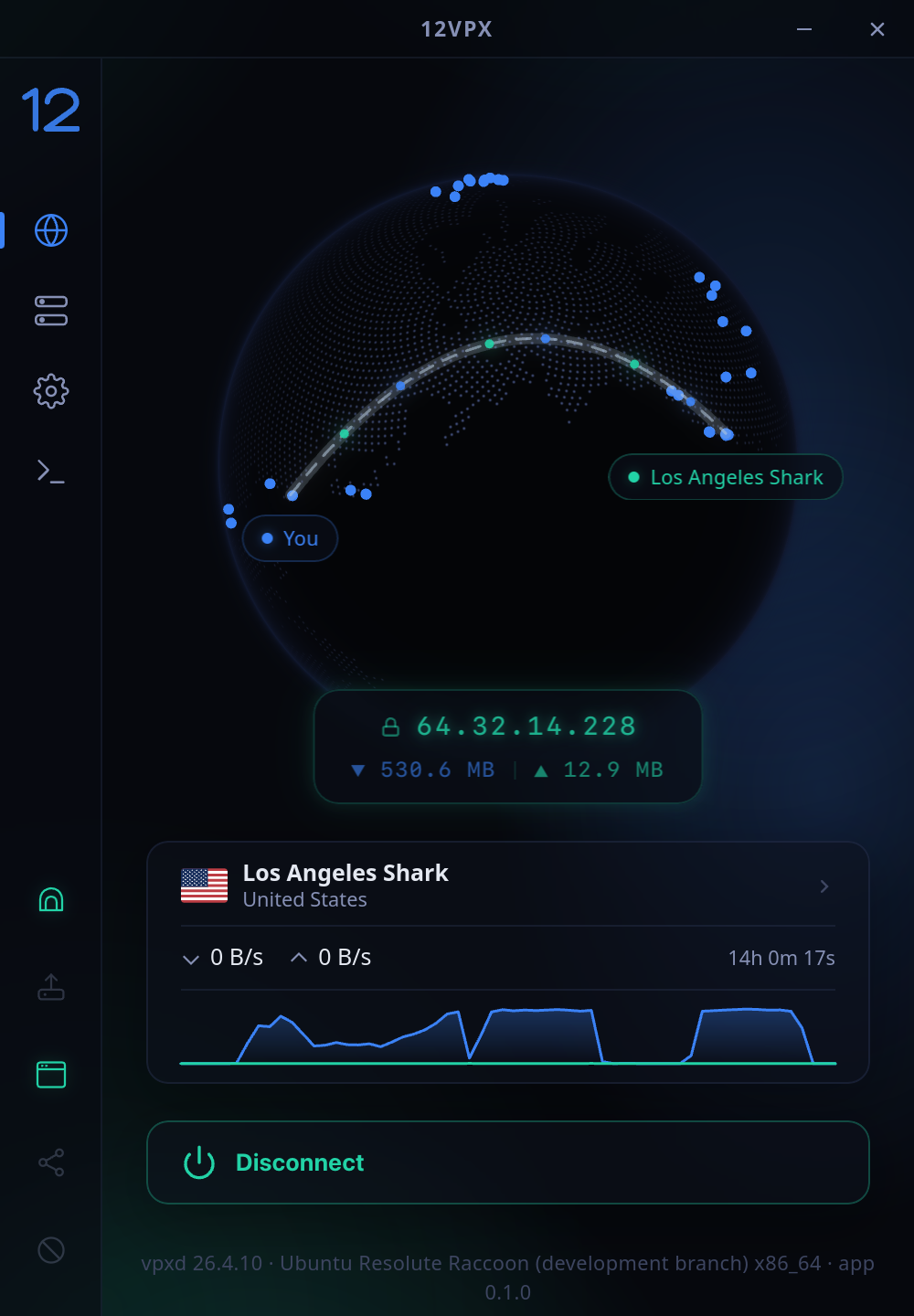
The desktop app is optional. It acts as a remote control for the main app.
Requirements
- Download, install and setup the VPX for Linux app described above.
- Download and install the desktop app found below.
Downloads - Stable
- Debian / Ubuntu (.deb) v26.10.37
- Fedora / RHEL (.rpm) v26.10.37
- AppImage (.AppImage) v26.10.37
- Flatpak (.flatpak) v26.10.37
Downloads - Beta
China
If you're in China, we recommend you go into Settings > Routing and switch the routing mode to Exclude Local China.
Troubleshooting
Remove VPX DNS
If vpxd crashes, or you restart the computer without a proper shutdown, you may be stuck with the VPN DNS (10.255.0.1) in your /etc/resolv.conf file.
To have NetworkManager clean this up, please run:
sudo bash -c '
  set -e
  read NAME DEV < <(nmcli -t -f NAME,DEVICE,STATE connection show --active \
    | awk -F: "\$3==\"activated\" && \$2!=\"\" && \$2!=\"lo\" && \$2 !~ /^vpx/ { print \$1, \$2; exit }")
  echo "Cleaning DNS on $NAME ($DEV)"
  nmcli connection modify "$NAME" -ipv4.dns 10.255.0.1
  nmcli connection modify "$NAME" ipv4.ignore-auto-dns no
  nmcli device reapply "$DEV"
'